

05Getting started
Install the extension. Open your AL project. Type one command.
Recommended install
Works with

The framework works for brand-new apps and for adding functionality to existing apps: start a new AL project with it, or kickstart it inside the one you already have. Have Git installed first: both agents install the plugin by cloning its repository, and the walkthrough checks for Git before anything else. If you install Git along the way, quit and reopen VS Code completely so it sees it.
Install the OCPF BC Dev Setup extension from the Visual Studio Code Marketplace. One click installs the AL toolchain, wires your AI agent (Claude Code or GitHub Copilot), and kickstarts the framework in your project.
Prefer to skip the extension? Install the VS Code or CLI plugin for Claude Code or GitHub Copilot directly; click the button below to view the README with full steps:
Step 2
/ocpf-bc:start
Then hand off to the agent in its chat panel. It helps you choose Build-a-Feature, Full (recommended), or Lite. Or just ask: “Start a Business Central project with the OCPF framework.” Full walkthrough and every command in Documentation.
Tutorial video · 5 minutes
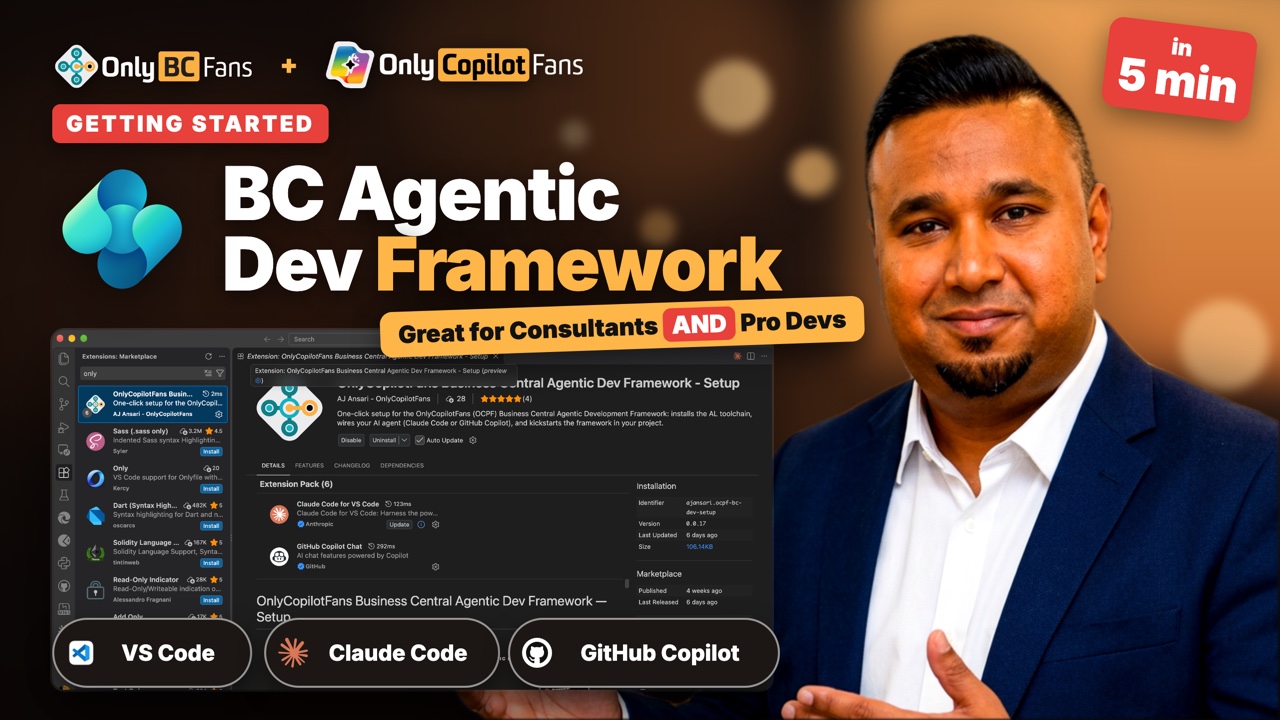
Getting started in five minutes: install the extension, then configure Claude Code and GitHub Copilot.
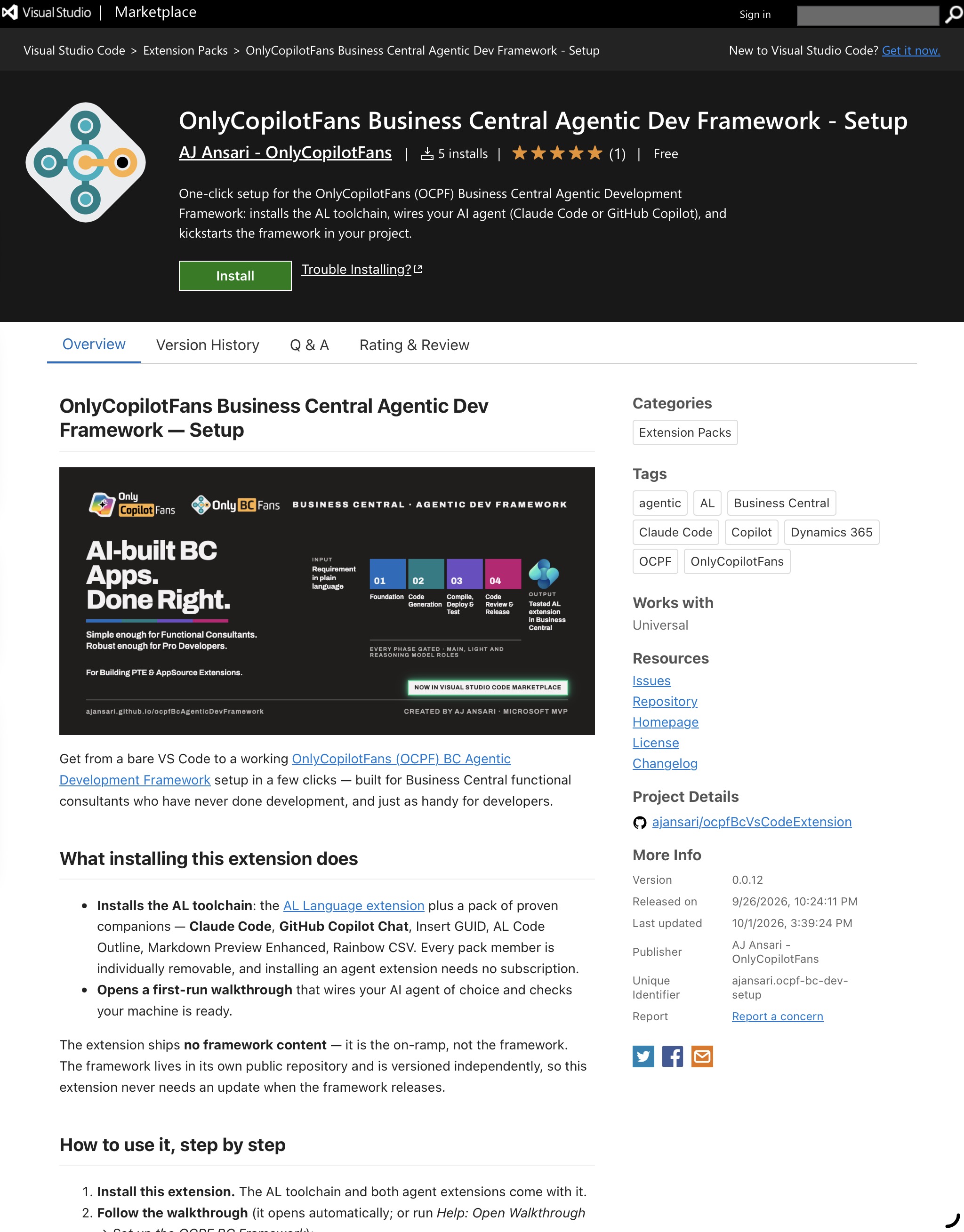
The extension's listing on the Visual Studio Code Marketplace: one install brings the AL toolchain, your AI agent, and the framework plugin.